Prompt-Based Image Editing
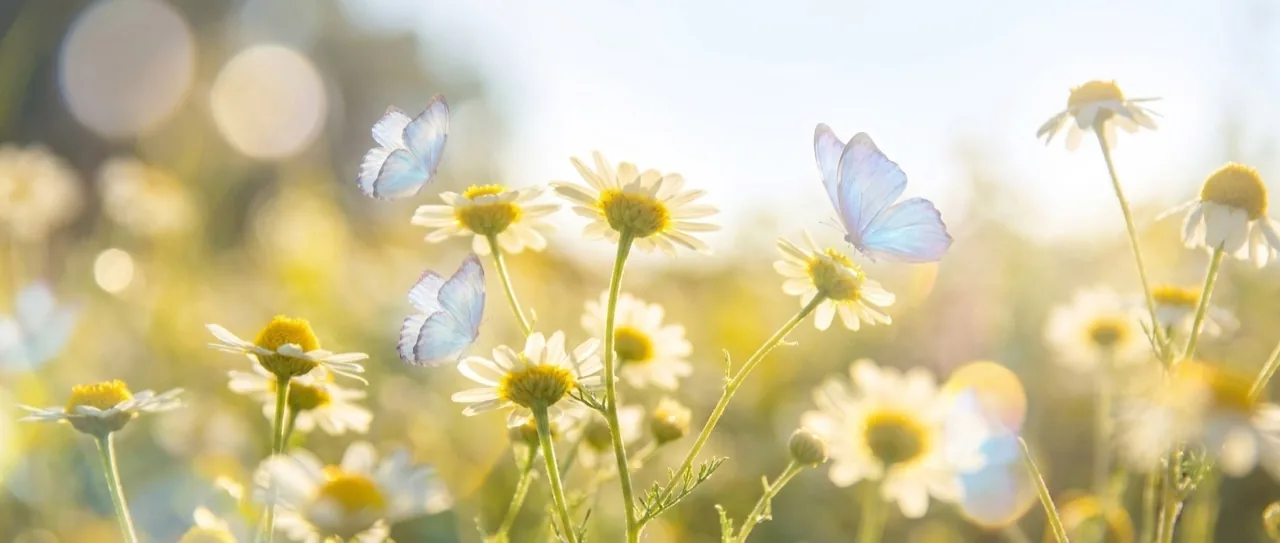
Describe the change you want instead of rebuilding the image. Adjust the setting, styling, lighting, or composition while keeping the useful parts of the original.
Try it NowCreate and refine high-quality visuals with Nano Banana Pro. Use prompts and reference images to preserve characters, products, and brand details while exploring new creative directions in Spira.
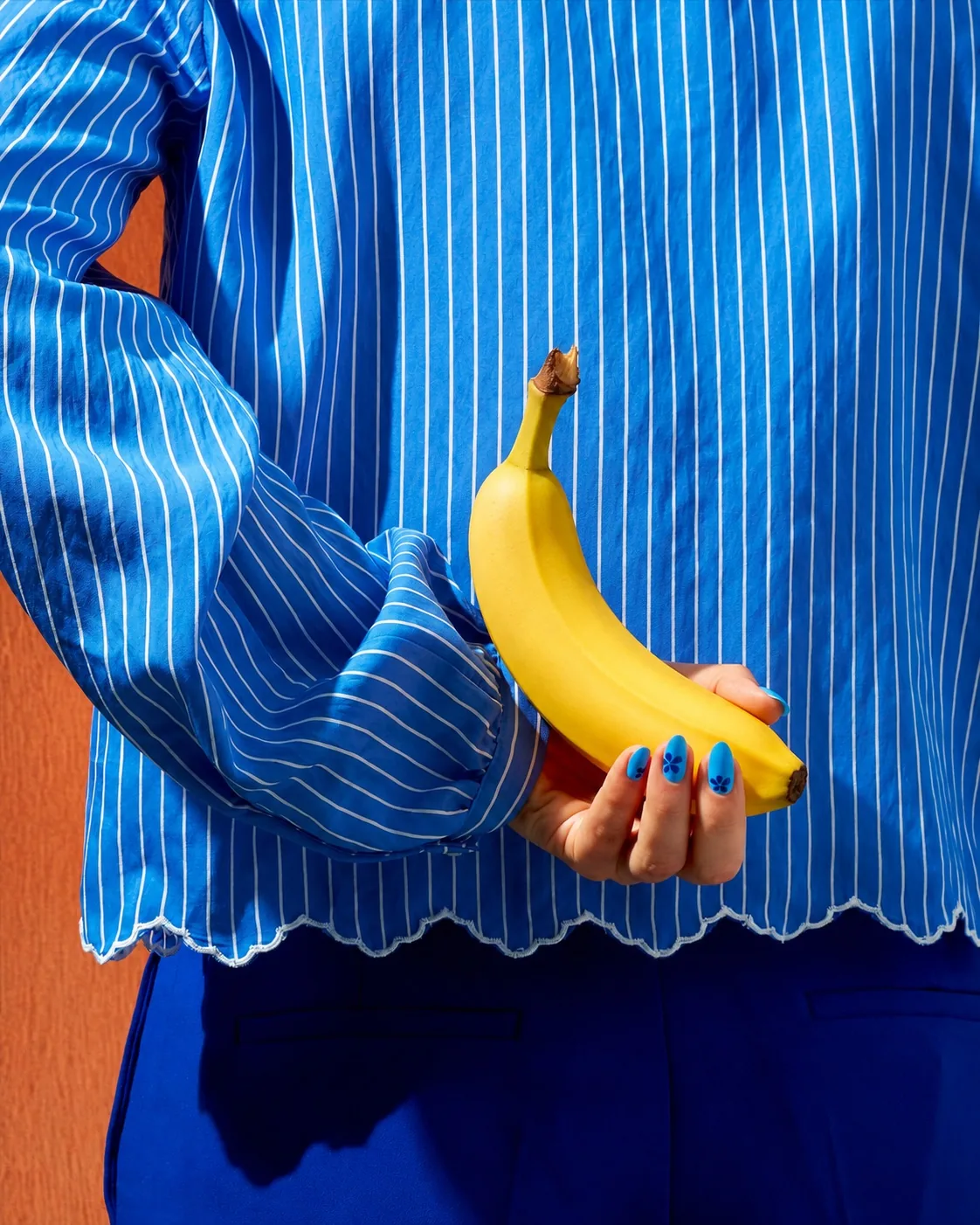
Model family
Generate a new visual, maximize quality, or make a precise edit to an existing image.
Create polished images, preserve important visual details, and make natural-language edits from one flexible workspace.
Describe the change you want instead of rebuilding the image. Adjust the setting, styling, lighting, or composition while keeping the useful parts of the original.
Try it Now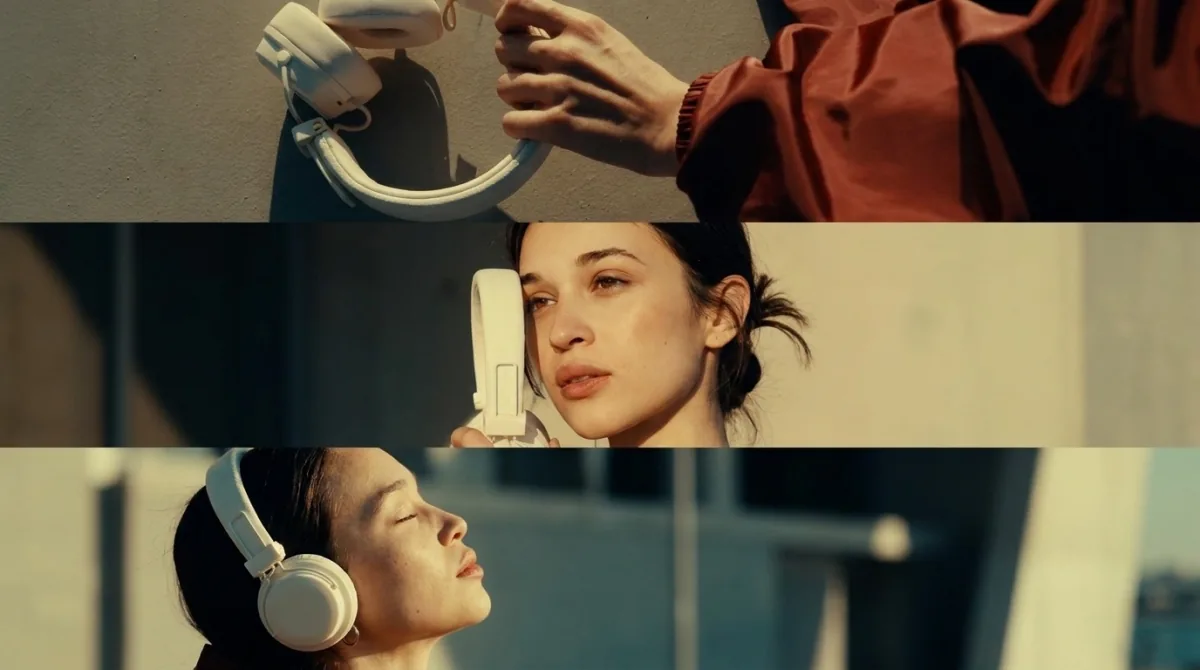
Use reference images to preserve the details that make a person, product, or brand recognizable. Explore fresh scenes without losing the identity of the original.
Try it Now
Guide framing, mood, color, and visual balance with one or more references. Combine clear art direction with generative flexibility to reach the look faster.
Try it Now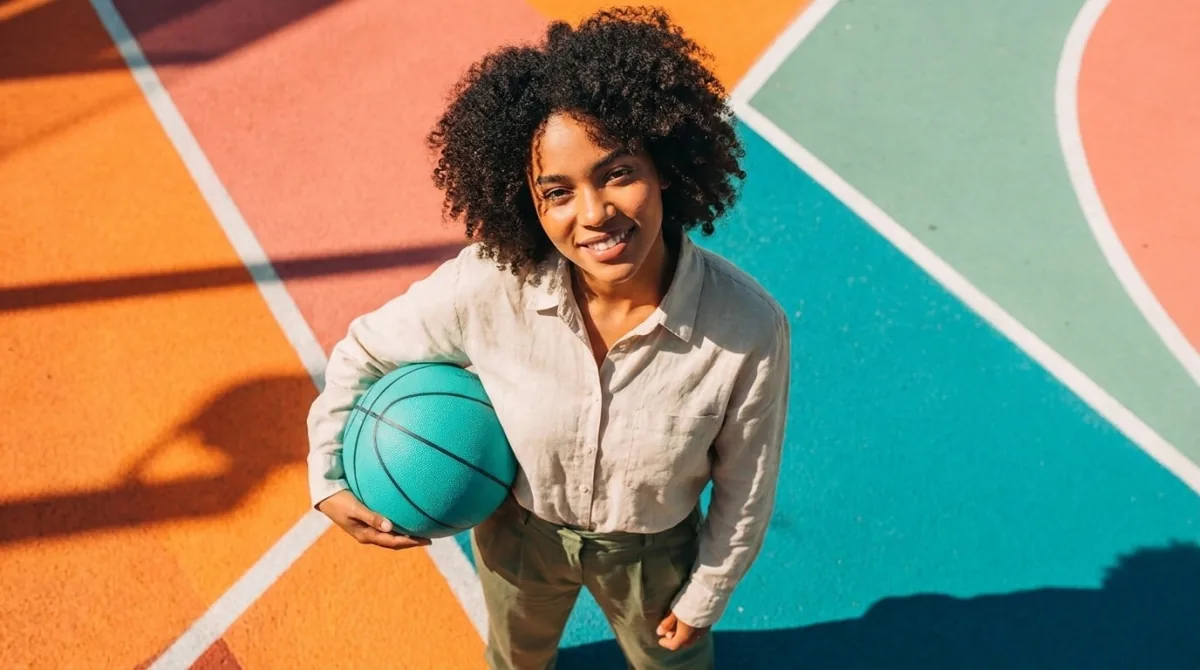
Create bright, detailed images for social posts, paid campaigns, product stories, and creative concepts. Keep the output polished across different placements.
Try it Now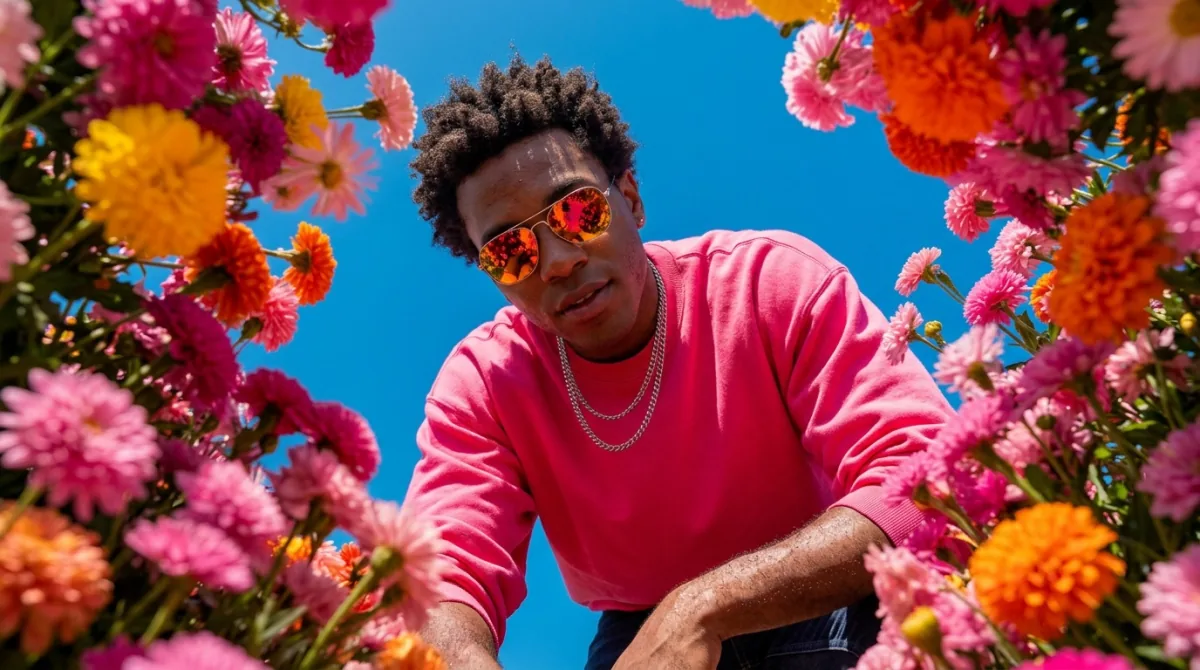
Branch one approved direction into alternate crops, settings, and styles. Give your team more options while keeping every variation connected to the same idea.
Try it NowThree steps to a polished, reference-led AI image.
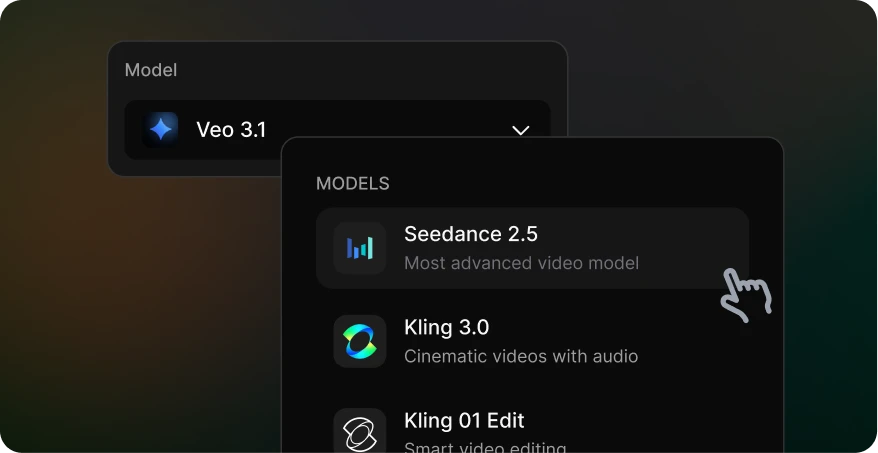
Step 01
Open Spira’s image generator and select Nano Banana Pro. Decide whether to create a new image or begin with an existing visual you want to edit.
Step 02
Describe what should stay the same, what should change, and how the finished image should feel. Add product, character, palette, or style references.
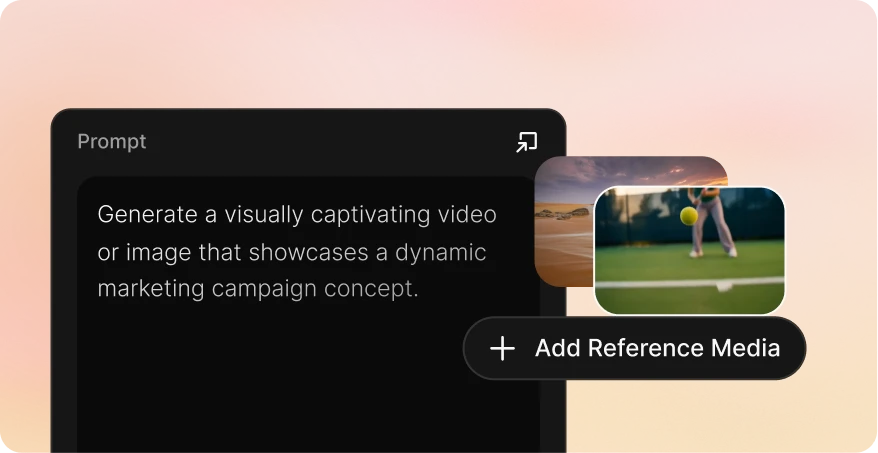
Step 03
Generate the image, check important product and subject details, refine one variable at a time, then download the approved campaign visual.
| 价格 | |||||
| 起价 | 从 $12/month | 按量付费 | 从 $110/month | 从 $19/month | 从 $18/seat/month |
| GPT Image 2 | $0.03 | 不支持 | $0.55 | $0.35 | $0.2635 |
| Nano banana image | $0.01 | $0.04 | $0.55 | $0.1 | $0.047 |
| Seedance2.0 Video, 720P | $0.07/s | $0.30/s | $0.66/s | $0.59/s | $0.21/s |
| Veo3.1, 720p | $0.06/s | $0.20/s | $1.37/s | $0.07/s | $0.48/s |
| Gemini Omni 1.1 Flash, 720 P | $0.06/s | 不支持 | 不支持 | 不支持 | 不支持 |
| Kling 3.0 | $0.06/s | $0.084/s | $0.8/s | $0.086/s | $0.105/s |
Yes. You can begin with a written prompt or bring in a reference image and describe the changes you want. This makes the model useful for both new concepts and targeted visual revisions.
Use a clear image of the person, product, composition, color direction, or visual style you want the generation to follow. Choose references you own or have permission to use.
Start with a strong reference, preserve the same defining details in each prompt, and change one major variable at a time. Keeping the subject description stable makes it easier to compare and refine variations.
State what should stay the same, what should change, and how the finished image should feel. Include the subject, setting, composition, lighting, palette, camera perspective, and intended content format when those details matter.
Image generation is priced per completed generation according to the selected model and settings. Use the comparison table for a platform benchmark and check the cost displayed in Spira before generating.